PawScheduler / Switching to PawScheduler
Switching to PawScheduler without retyping your clients
From MoeGo: do it yourself in minutes
- In MoeGo, export your client list (and your appointments, if you can). A .csv or .xlsx file works.
- In PawScheduler, go to Clients → Import and choose the file or files.
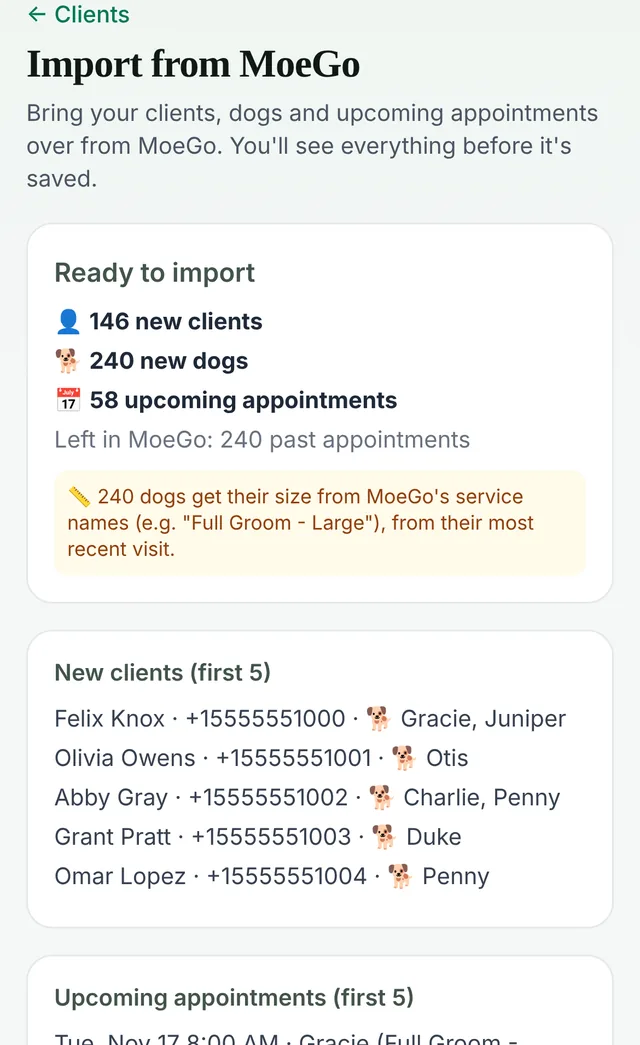
- Check the preview: how many clients, pets and appointments, plus anything worth a look (like clients with no phone number).
- Tap import.
What comes over: clients and their contact details, pets with breeds, grooming notes, upcoming appointments, and dog sizes taken from service names like "Full Groom - Large". The file is read on your own device. Duplicate client records from MoeGo are combined, and running the import twice doesn't add anything twice.
From anything else: we do it for you
Gingr, DaySmart Pet, GroomBoard, Square, a spreadsheet, a paper book or your phone's contacts: send us what you have and we put it in for you, free. An export file is quickest. Photos of a written client list work too. Reach us from the Support page in the app after you sign up.
A switching plan that doesn't disrupt your week
- Day 1: sign up free (no card), add your services, prices and hours.
- Day 1–2: import your clients (yourself from MoeGo, or send us the list).
- Same week: add the appointments you've already booked, or let the MoeGo import bring them over. Keep your old app open read-only until your next few weeks are in.
- Then: share your new online booking link and turn on text reminders. We have copy-and-paste messages for telling clients.
- Last: cancel the old app once nothing is left on it.
What you get after switching
- A free plan (up to 50 appointments a month), or Growth $49.99 and Team $79.99. No contracts.
- Every new account gets a 14-day Growth trial, no credit card.
- Online booking, reminders, pet records with behavior tags, waivers and intake forms, vaccine tracking and payment links through your own Stripe account.
- An optional AI texting assistant that books clients by text.
Common questions
How do I move my clients from MoeGo to PawScheduler?
Export your client list (and appointments, if you can) from MoeGo as a .csv or .xlsx file, then upload it in PawScheduler under Clients → Import. Clients, pets with breeds, notes, upcoming appointments and dog sizes come over in minutes.
Will I have to retype my clients when switching grooming software?
No. MoeGo exports import on their own. From any other app, a spreadsheet or a paper list, PawScheduler imports your client list for free on request.
Does it cost anything to import my client list?
No. The MoeGo import is built in, and the done-for-you import from other apps or paper is free.
Can I import from Gingr, DaySmart Pet or a spreadsheet?
Yes, as a free done-for-you import. Send the export or spreadsheet and it's put in for you.
What if I run the MoeGo import twice?
Nothing is added twice. Clients already imported are recognised and skipped, and MoeGo's duplicate records are combined.
Do I need to cancel my old software first?
No. Keep it until your upcoming appointments are in PawScheduler, then cancel.
Bring your clients over
Sign up free, no credit card. Import from MoeGo yourself, or send us your list.
Start freeMore from PawScheduler
Comparisons
- Groomsoft alternative for solo groomers
- Pawfinity alternative for groomers
- Best dog grooming software in 2026 (7 compared)
- MoeGo alternative for solo groomers
- Gingr alternative for solo groomers
- DaySmart Pet alternative for solo groomers
- Time To Pet alternative for groomers
- GroomBoard vs PawScheduler
- Square alternative for dog groomers
- Vagaro and Acuity alternative for dog groomers
Guides
- Best software for solo dog groomers
- Software for small grooming teams
- AI texting assistant for dog groomers
- Mobile dog grooming software
- Dog grooming scheduling software
- Dog grooming software pricing
- How to reduce no-shows in dog grooming
- Mobile grooming service areas
- Grooming software that works without cell service
- Scheduling daycare and grooming
- Dog grooming income calculator
- Dog grooming vaccine tracking
- Dog grooming report card examples
- PawScheduler FAQ
- How much to charge for dog grooming
- How to start a mobile dog grooming business
- How to get more dog grooming clients
- Free dog grooming software
Free templates
- Matted dog policy template
- Late arrival policy
- Holiday schedule texts
- Cancellation and no-show policy template
- Dog grooming waiver template
- Dog grooming text message templates
- Dog grooming intake form template